
Connect Exterview to Claude, ChatGPT, Gemini & Copilot
Connect Exterview with your existing tools through MCP. Automate approved hiring tasks while keeping final hiring decisions human-led.
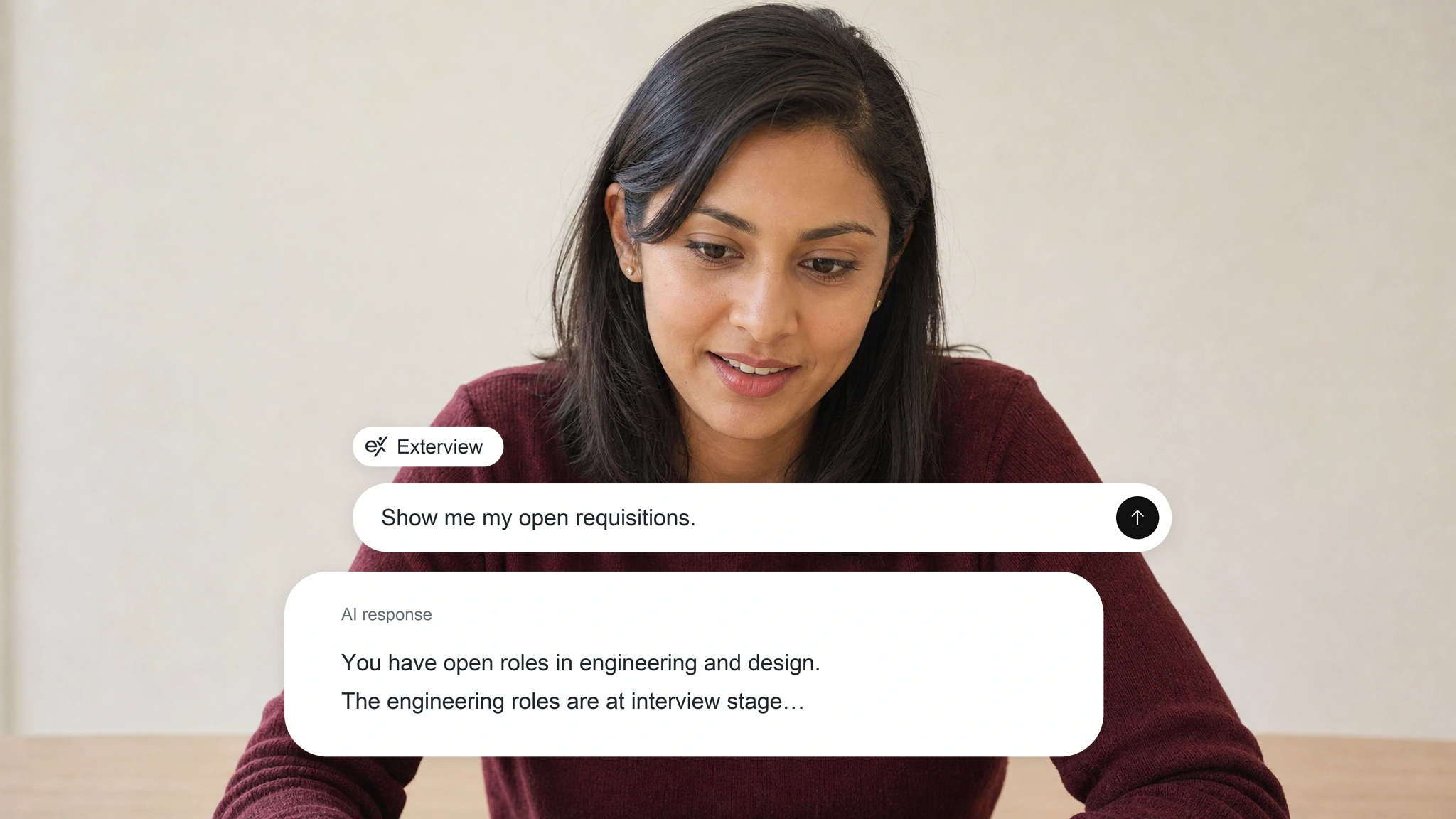
Choose tools, bound access and validate the connection
01
Identify the required tools
Choose the systems and actions your hiring workflow needs, then confirm the integrations.
02
Bound access and actions
Explore authentication, permissions, and human-approved actions within defined boundaries.
03
Test before production
Test workflows, validate actions, and define acceptance criteria and escalation ownership before launch.
Paste a setup prompt into your AI





Claude
claude.ai ↗Claude can’t add connectors on its own, so it walks you through adding Exterview as a custom connector in its settings.
Help me connect Exterview (exterview.ai, our hiring platform) to Claude. You can’t add connectors yourself, so walk me through it step by step: open Settings > Connectors > Add custom connector, paste https://mcp.exterview.ai/mcp, click Add, then Connect, and approve the Exterview sign-in. Once connected, list my open requisitions so I can confirm it’s working.
Claude Code adds the server itself. Paste this and it runs the command for you.
Add the Exterview MCP server to this project: run claude mcp add --transport http exterview https://mcp.exterview.ai/mcp, then complete the Exterview sign-in in the browser when prompted. Once connected, list my open requisitions and tell me which Exterview workspace you’re in.
ChatGPT
chatgpt.com ↗The ChatGPT app can’t add connectors on its own, so it walks you through adding Exterview in its settings.
Help me connect Exterview (exterview.ai, our hiring platform) to ChatGPT. Walk me through it step by step: open Settings > Connectors > Add custom connector, paste https://mcp.exterview.ai/mcp, add it, then approve the Exterview sign-in. Once connected, list my open requisitions so I can confirm it’s working.
Codex writes the server into your config once you paste this.
Add the Exterview MCP server to Codex: register https://mcp.exterview.ai/mcp as a streamable HTTP MCP server in my Codex config, restart, then complete the Exterview sign-in. Once connected, list my open requisitions and tell me which workspace you’re in.
Slack
slack.com ↗Install the Exterview app in Slack, then point it at the MCP server so it can act on your behalf.
Connect Exterview to Slack. Add the Exterview MCP server at https://mcp.exterview.ai/mcp as a remote MCP server, complete the Exterview sign-in, then post my open requisitions into this channel so I can confirm it’s working.
Copilot
copilot.microsoft.com ↗Copilot adds the server to your workspace config and starts it.
Add the Exterview MCP server to Copilot: create an MCP server entry pointing at https://mcp.exterview.ai/mcp in my workspace config, start it, then complete the Exterview sign-in. Once connected, list my open requisitions so I can confirm it’s working.
Any MCP client
Any MCP client works. Point it at the endpoint and approve the Exterview sign-in.
I want to connect Exterview to this client. The MCP server is at https://mcp.exterview.ai/mcp and authenticates with OAuth. Add it as a remote HTTP MCP server, complete the Exterview sign-in, then list my open requisitions so I can confirm it’s working.
Works with your existing agents
The same MCP connection covers every stage, so an agent never has to hand the work back to a different tool.
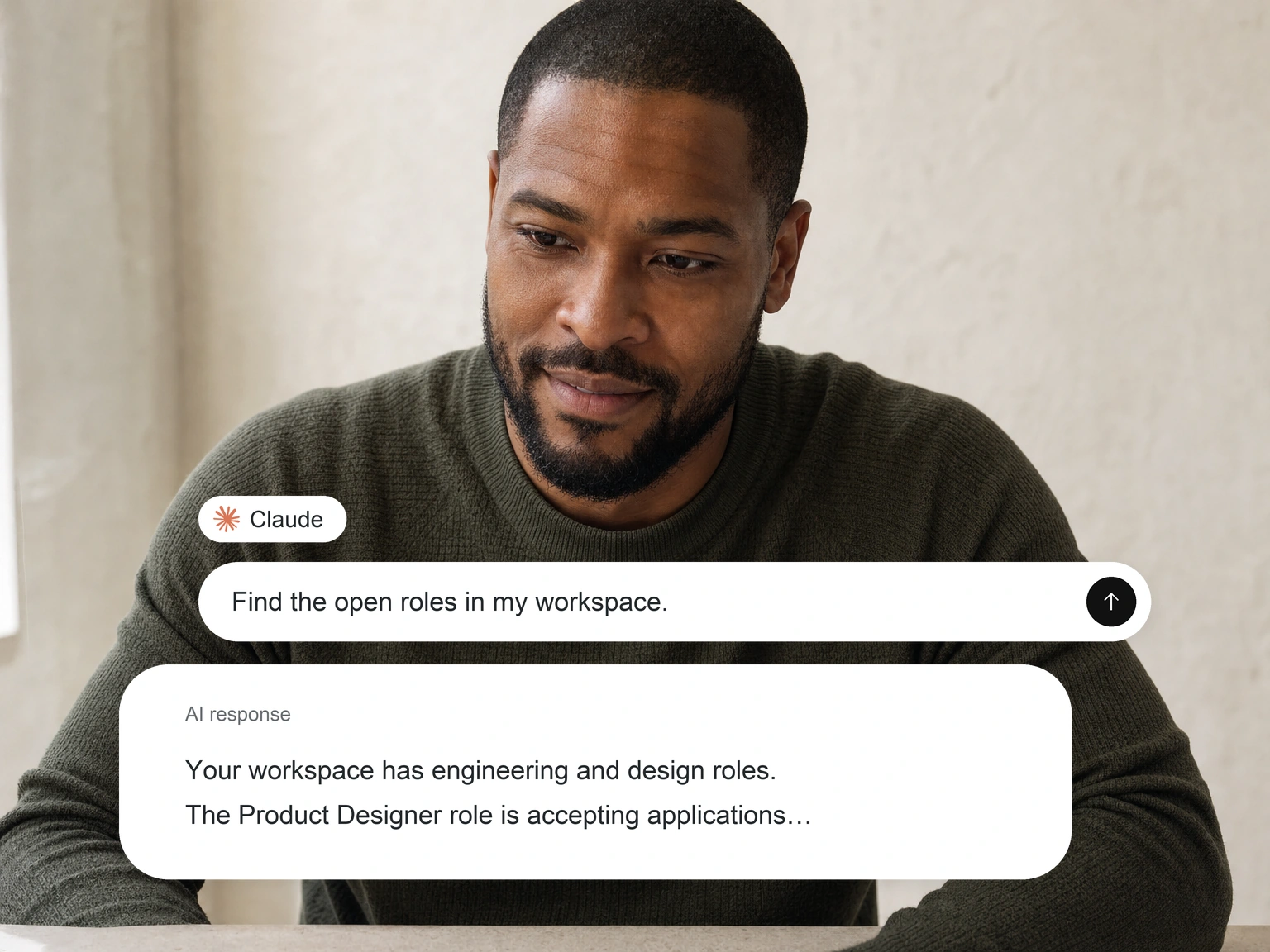
Claude
Add the Exterview MCP server in Claude and sign in with your existing account. Claude can then read requisitions, search the pipeline, and draft scorecards without leaving the conversation.
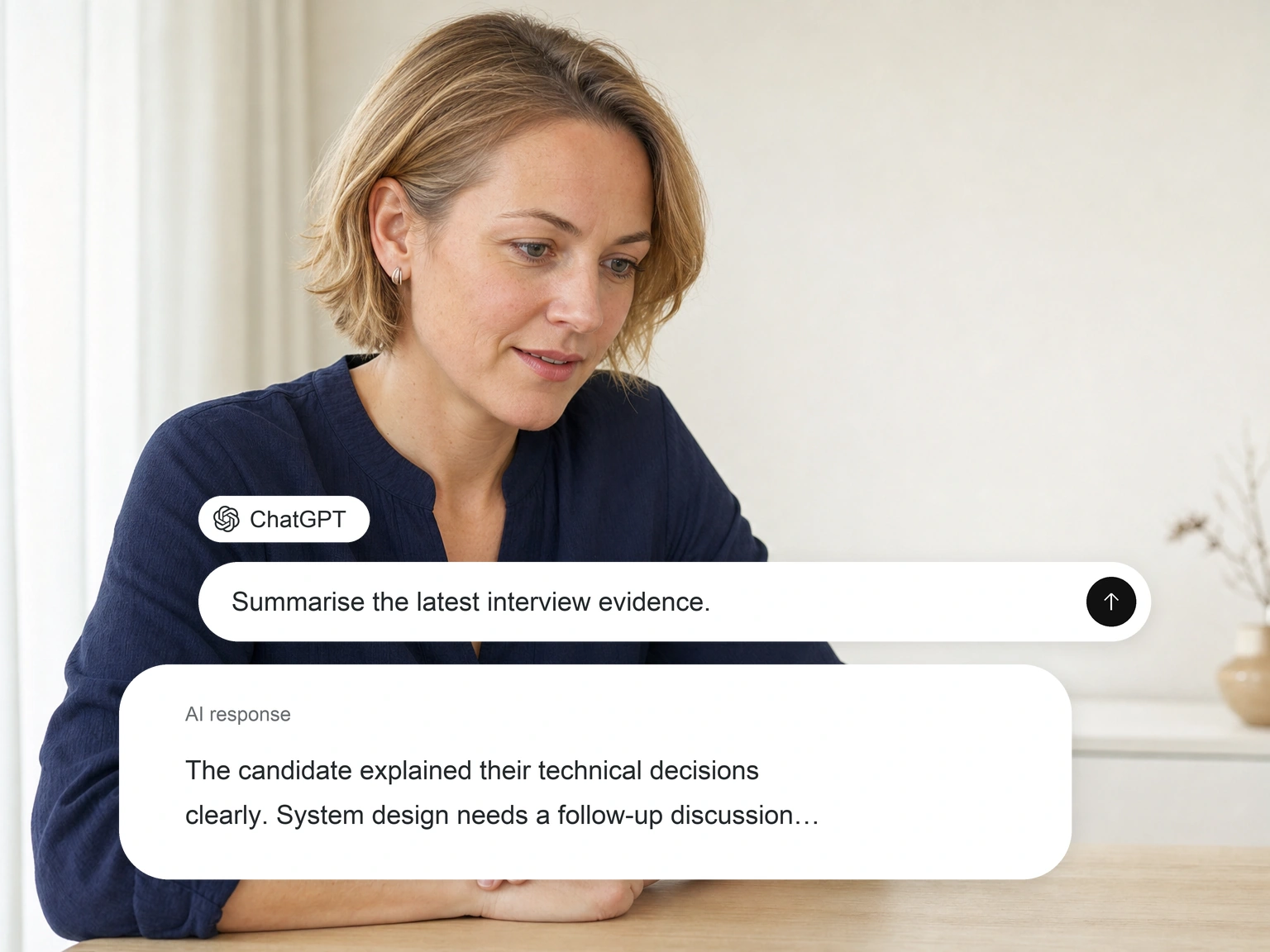
ChatGPT
Connect the same endpoint in ChatGPT. Ask for a shortlist, a resume screen, or an interview summary and the answer comes back from live Exterview records rather than a stale export.

Slack
Tag Exterview in a Slack channel and ask for a shortlist, a screen, or a candidate's status. The answer comes back in the thread, where the whole hiring panel can see the same evidence.
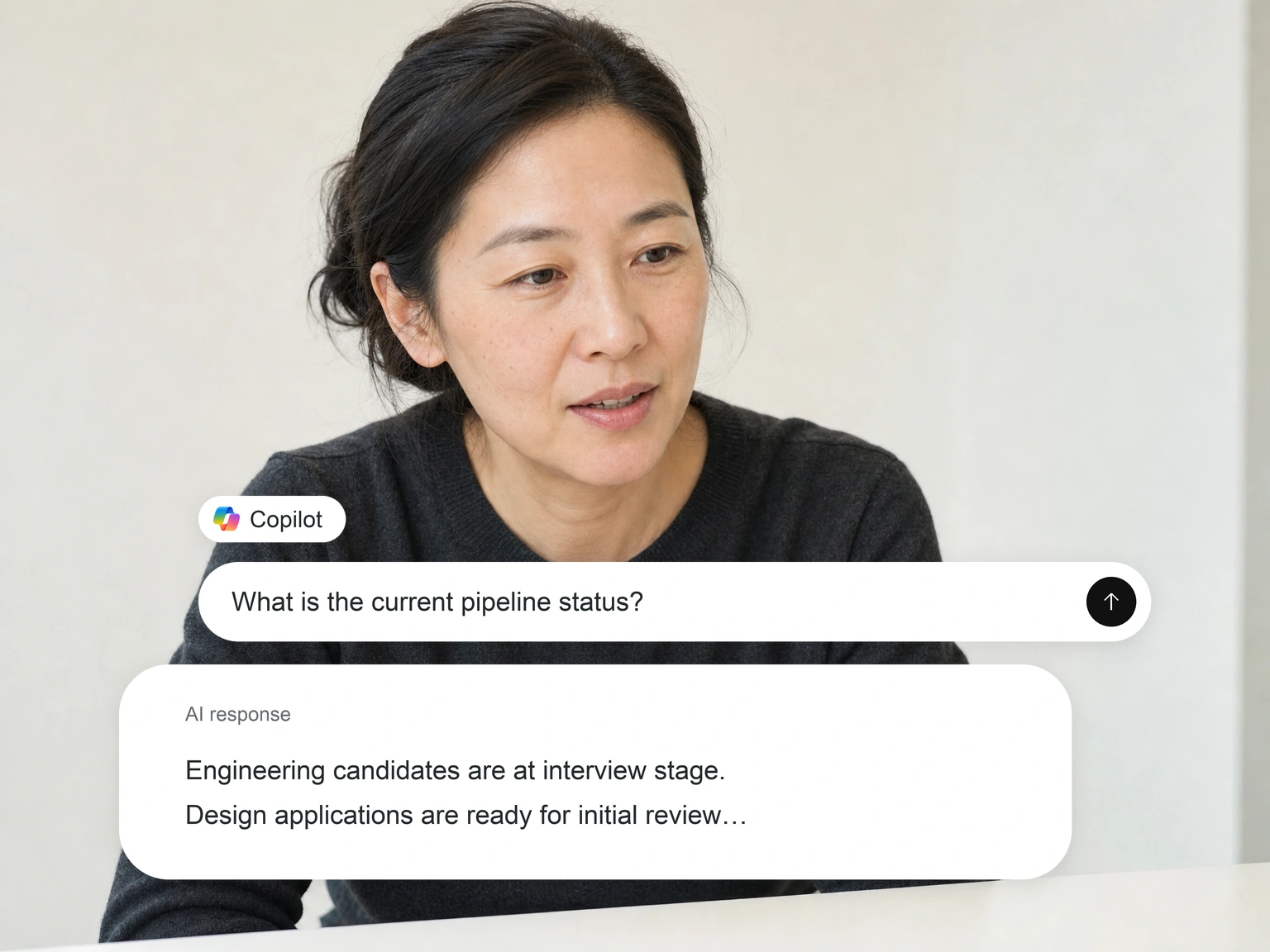
Copilot
Copilot uses the same server, so recruiters working in Microsoft 365 can check pipeline status, request a screen, and review evidence from where they already are.
Put AI employees to work in your hiring environment.
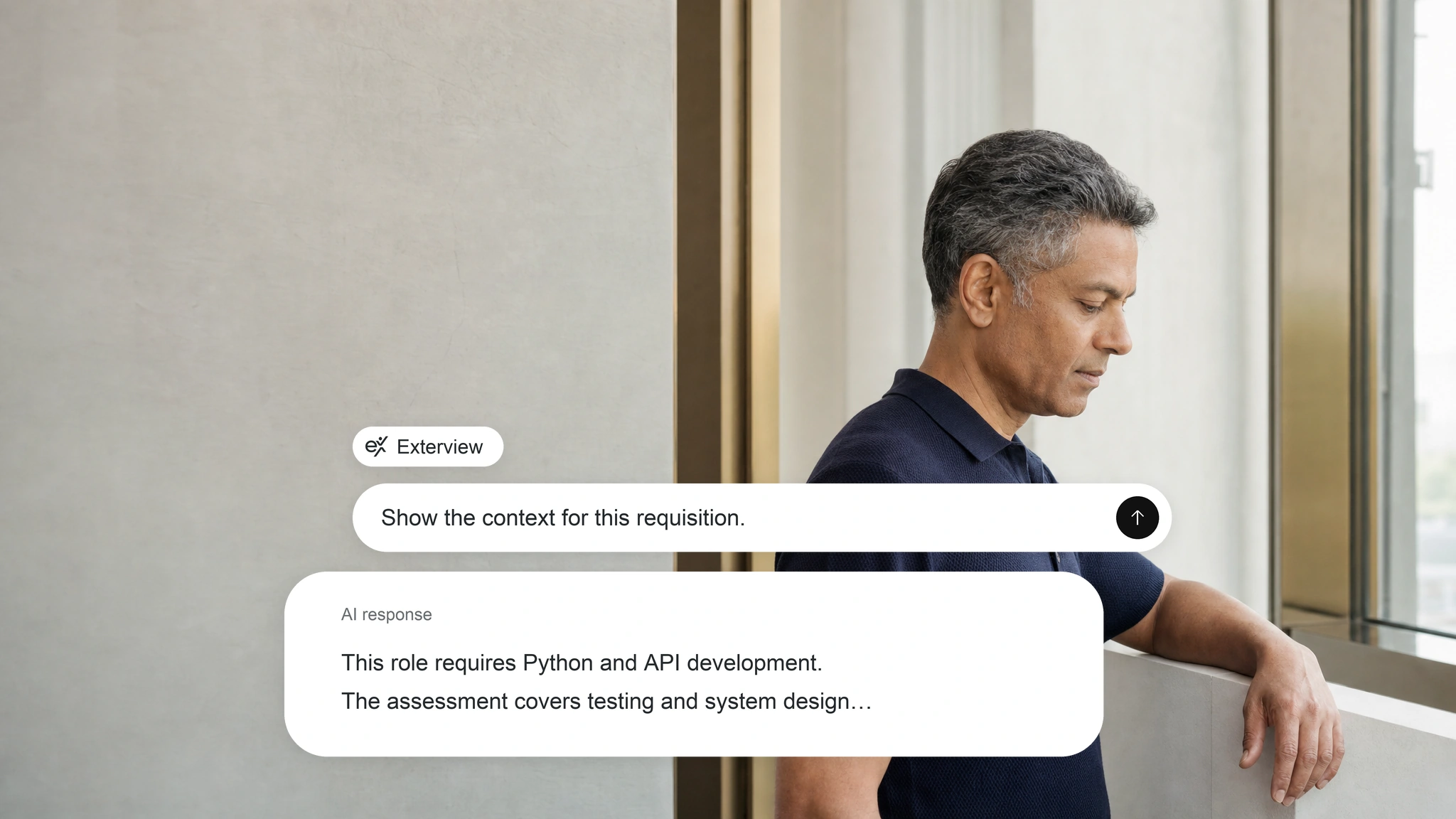
Read the hiring context
Access requisitions, candidate data, assessments, and identity status through role-scoped MCP tools.
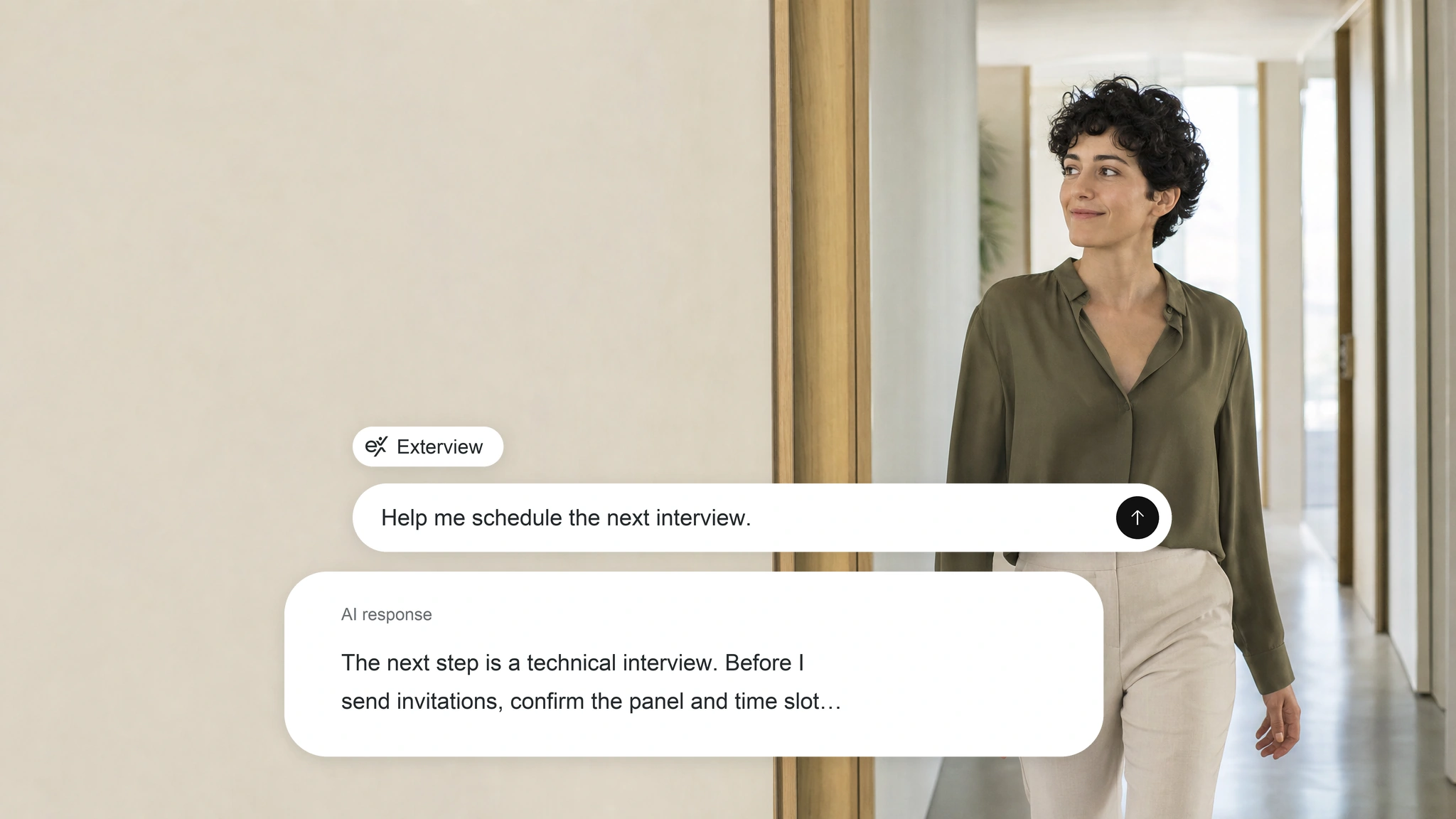
Act inside the workflow
Automate resume screening, interviews, scheduling, candidate progression, and offer preparation through MCP tools.

Prove every action
Every tool call, data retrieval, and update is logged in the candidate’s qualification record, including the agent and authorising person.